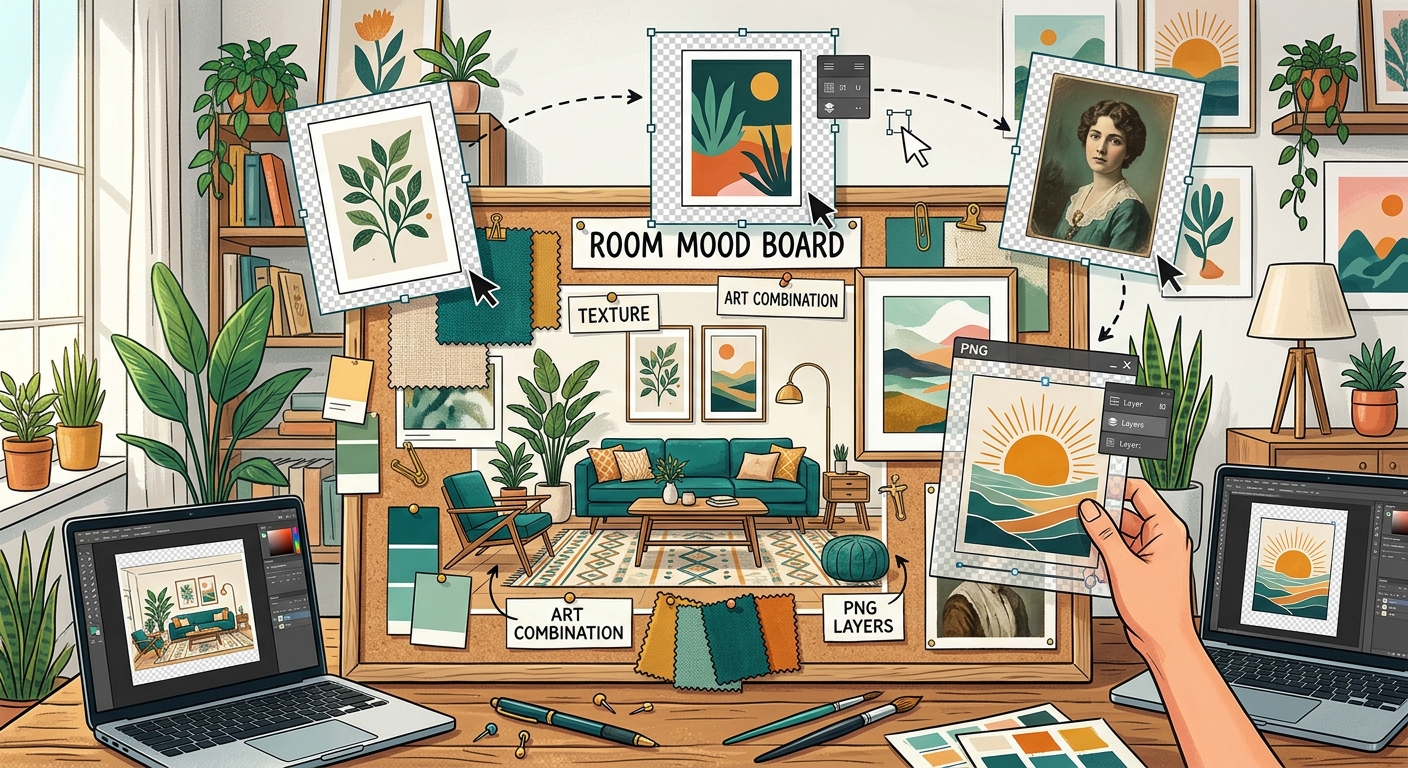
How to Combine Transparent PNGs and Wall Art in Room Mood Boards
Build a room mood board in Canva with transparent PNG furniture, plants, and decor. Learn layering, realistic scale, and coordinating wall art.

Search

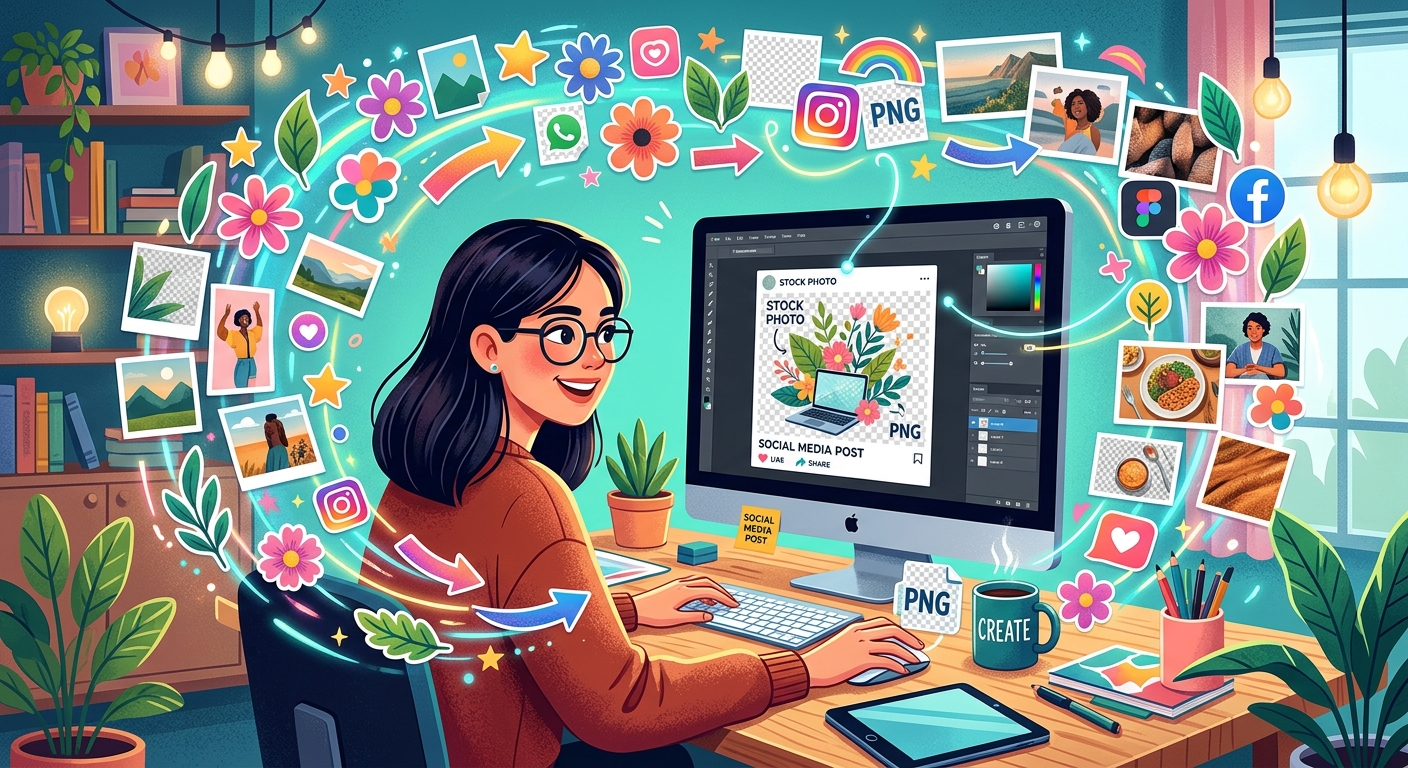
Most people scroll past social media posts in under two seconds. The ones that stop them share a common quality: a clean, layered graphic that looks designed rather than thrown together. Here is the good news. You do not need a paid subscription, a design degree, or expensive software to make graphics like that. All you need is a free transparent PNG, a well-chosen background photo, and about twenty minutes.
A JPEG locks every pixel into a rectangle. Subject, background, shadow, all flattened together into one block. Drop it onto another image and you get a hard-edged box sitting on top of a photo. It looks exactly like what it is: two separate images stuck together.
A transparent PNG works differently at the file level. The background is removed entirely, leaving only the subject. When you place that cutout onto a new background, the two images blend as if they always belonged together.
This is possible because PNG files support alpha transparency, a data channel maintained in the W3C specification that controls the opacity of each individual pixel. Every modern browser, design app, and image editor reads this channel correctly, which is why a cutout graphic behaves predictably no matter where you use it.
Not every free PNG site delivers what it promises. Some files have white halos where the background was crudely removed. Others are low resolution, making the subject look pixelated the moment you resize it. A few sites have licensing terms buried in their footer that require attribution you might forget to add.
PNGPix organizes its library into tag pages covering brand logos, anime characters, celebrity cutouts, festival graphics, borders, and more. Files download as proper transparent PNGs with clean edges, not JPEGs with a white fill masquerading as transparency. The tag system makes it fast to find something relevant rather than scrolling through an overwhelming grid.
Before using any free PNG in a social media post, check for these qualities:
The background photo does more work than most creators realize. It sets the color palette, the mood, and the implied context for your cutout. A product PNG on a plain white background reads like a product listing. The same PNG on a warm outdoor scene or a textured surface reads like an ad.
Color harmony matters most. If your PNG subject has warm tones, look for backgrounds with golden hour light or earthy textures. Cool-toned cutouts work well against sky blues, dark gradients, or muted concrete textures. The goal is visual cohesion, not aggressive contrast.
For finding photos matched to your subject, browsing a stock photo gallery organized by theme tags is one of the fastest methods available. Instead of typing generic search terms and scrolling through thousands of unrelated results, you pick a tag that reflects the mood or setting you want and the gallery narrows to images that are already thematically relevant. If your PNG is a food cutout, a tag like "kitchen" or "restaurant" surfaces backgrounds that fit immediately. If your cutout is a character or mascot, lifestyle and nature tags often produce backgrounds that give the figure a natural context.
Pay attention to light direction while you browse. A PNG cutout lit from the left placed on a background lit from the right creates a subtle visual wrongness that viewers sense even when they cannot name it. When possible, match the light source direction between your PNG and your background photo.
Canva runs entirely in a browser, requires no installation, and the free tier covers everything needed for this kind of project. It is the fastest route from raw files to a finished post.
GIMP is a free, open-source image editor that gives you more control over every part of the compositing process. It has a steeper learning curve than Canva, but it handles blending modes, precise color correction, and complex layer arrangements that the Canva free tier limits.
Start by creating a new file in GIMP at your target dimensions. Go to File, then Open As Layers, and select your background stock photo. The photo opens as its own layer in the Layers panel. Use the same command to add your PNG. GIMP reads the alpha channel from the PNG and preserves the transparency.
In the Layers panel, the background photo should sit at the bottom. Your PNG cutout goes above it. If the order is reversed, drag the layers into the correct position within the panel.
Use the Scale Tool to resize your PNG to fit the composition, and the Align Tool to center it on the canvas. For fine positioning, the Move Tool lets you nudge the layer one pixel at a time using the arrow keys, which is useful when you need the subject to align precisely with an element in the background.
Once the composition looks right, export your file by going to File, then Export As. For social media output, PNG or high-quality JPEG both work. If you plan to edit the graphic again later, save a separate copy as a GIMP project file (.xcf) so the layers stay editable. Never overwrite your original source files.
Both tools complete this workflow at zero cost. The right choice depends on how much control you need and how comfortable you are with design software.
| Feature | Canva (Free Tier) | GIMP |
|---|---|---|
| Setup required | Browser only, no install | Desktop install required |
| Skill level | Beginner-friendly | Beginner to intermediate |
| PNG transparency support | Automatic, no setup needed | Full alpha channel control |
| Layer blending modes | Limited on free plan | Full set included |
| Export formats | PNG, JPG, PDF, GIF | PNG, JPG, TIFF, WebP, XCF |
| Best for | Speed and preset templates | Precision and custom edits |
A graphic built at the wrong size will either appear blurry, get cropped in an unexpected place, or display with awkward bars around it. Platform size requirements shift occasionally, but these dimensions hold steady across the major platforms and produce clean results.
Instagram feed posts look best at 1080 x 1080 pixels for square format, or 1080 x 1350 pixels for portrait. Stories and Reels use 1080 x 1920 pixels. Facebook feed images perform best at 1200 x 630 pixels landscape. Posts on X (Twitter) display cleanly at 1600 x 900 pixels. LinkedIn shared images work at 1200 x 627 pixels.
Build your canvas at the target dimensions before you place a single element. Resizing a finished composition after the fact almost always distorts text or softens the cutout edges. Starting at the correct size takes thirty seconds and saves a full rebuild later.
Keep your original layered file separate from your export. If a platform updates its size specifications, or you want to adapt the graphic for a second platform, you can open the source file and adjust without starting over.
The first time a clean transparent PNG lands perfectly on a matching background, the process makes complete sense. It is not about being a professional designer. It is about understanding the three-step sequence: find a quality cutout, match it to a background with the right mood, and use a free tool to layer them together at the correct output size.
Start with one post. Pick a PNG that fits your topic, find a background photo with a complementary tone, and build a single 1080 x 1080 pixel graphic in Canva. Do not wait until the setup feels perfect. Finish it. Your second graphic will take half the time, and by your tenth you will have a repeatable process that fits into any content schedule.
Everything in this workflow is free. The PNG source, the background photo, the compositing tool, and the export. The only investment is the time spent building the habit, and that investment pays back every time you post something that actually makes someone stop scrolling.
Build a room mood board in Canva with transparent PNG furniture, plants, and decor. Learn layering, realistic scale, and coordinating wall art.
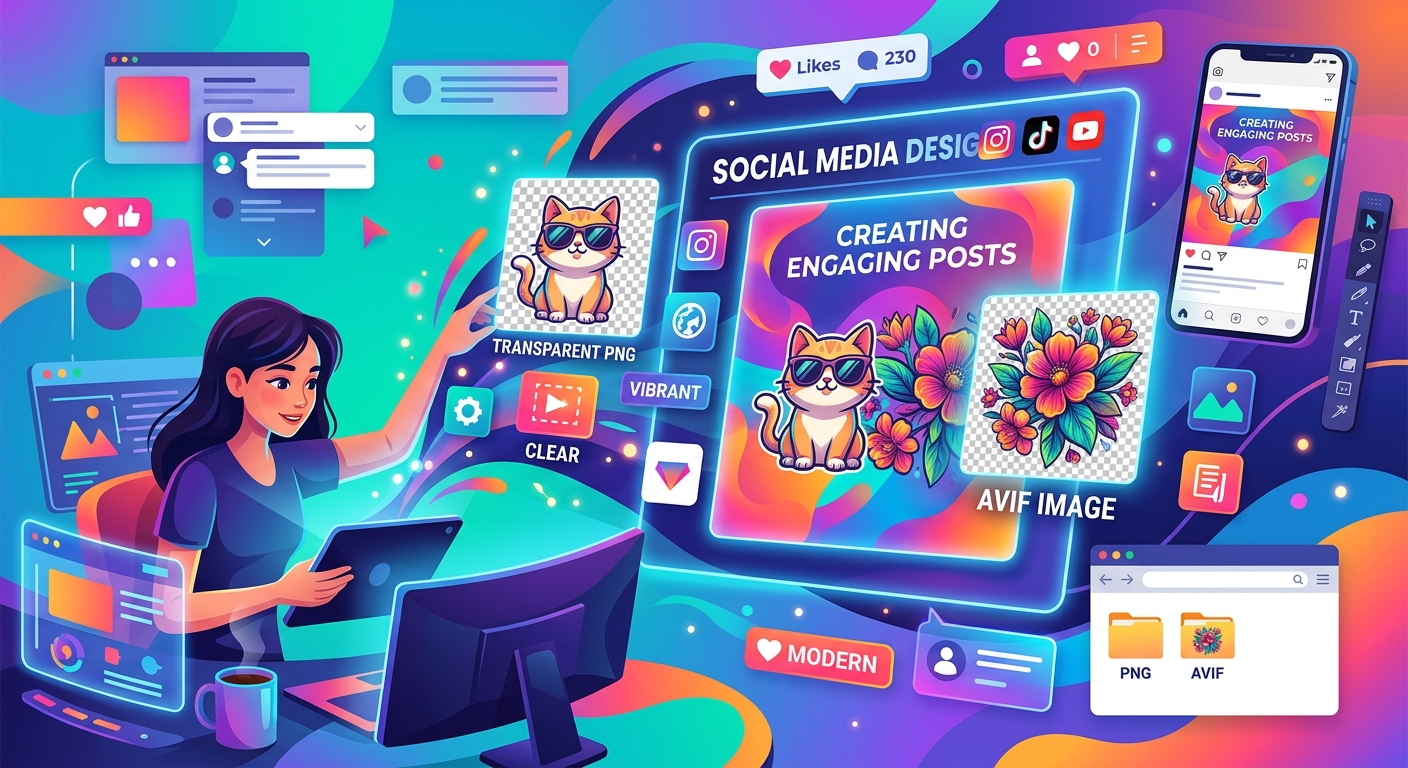
Combine transparent PNG cutouts with AVIF photos in Canva or GIMP. Build clear thumbnails and social posts, handle import issues, and export clean designs.
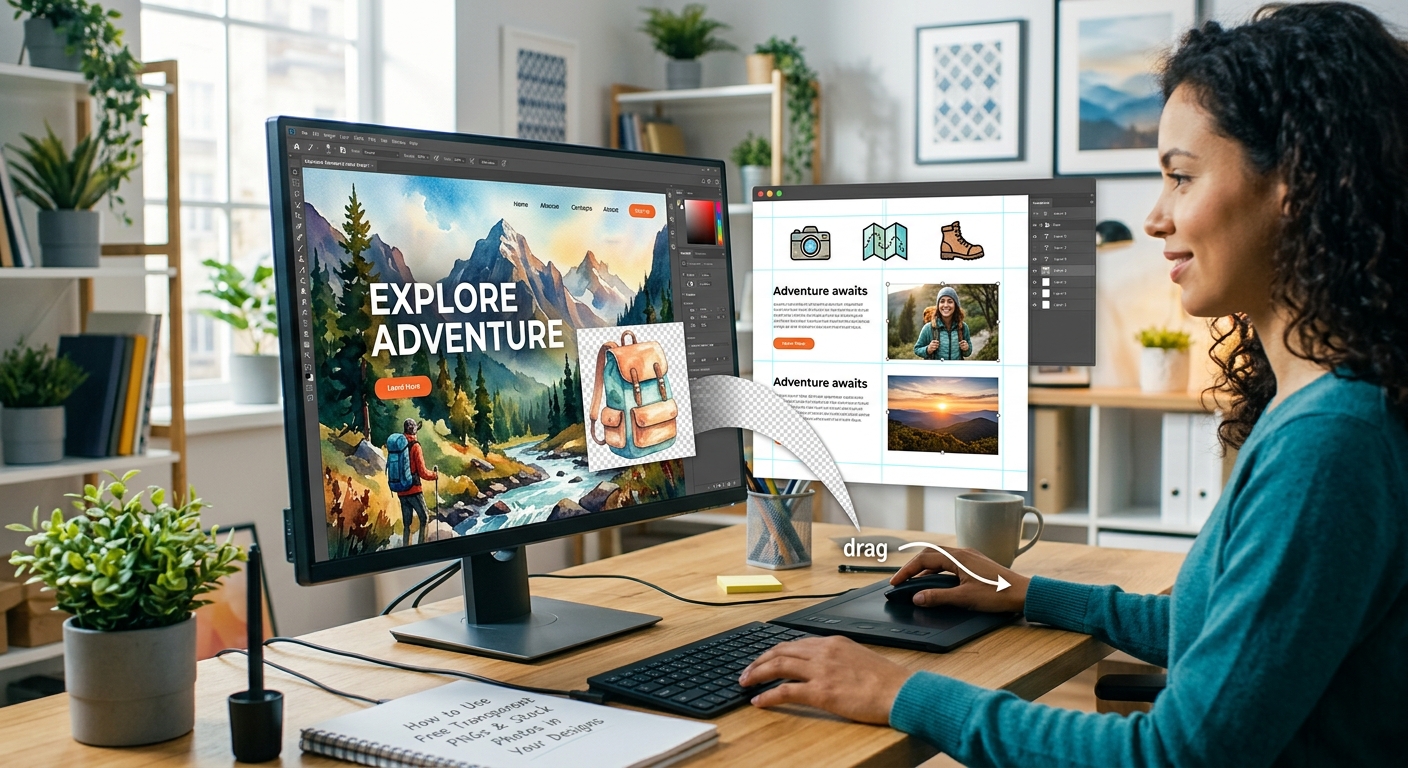
Layer free transparent PNGs over stock photos in Canva or GIMP to build polished thumbnails, social graphics, and blog headers step by step.