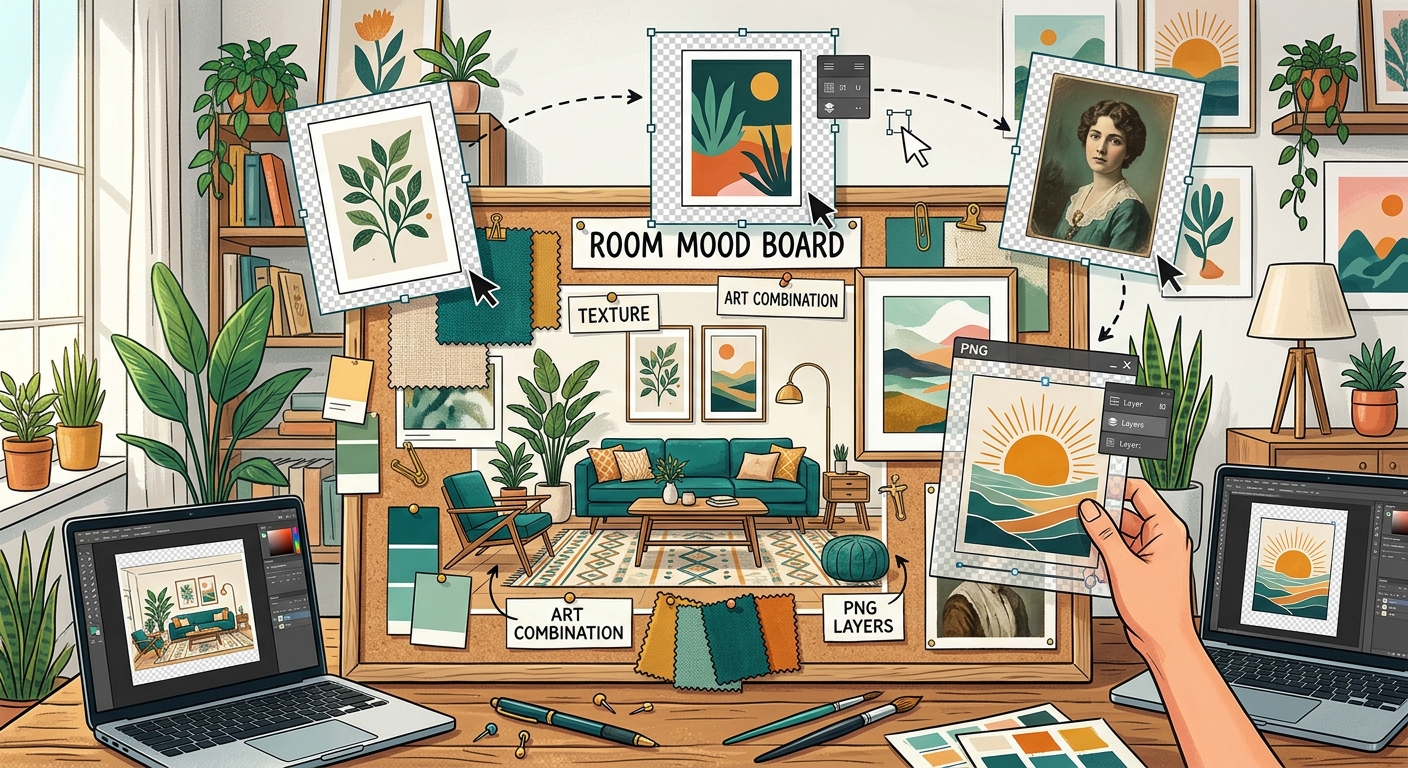
How to Combine Transparent PNGs and Wall Art in Room Mood Boards
Build a room mood board in Canva with transparent PNG furniture, plants, and decor. Learn layering, realistic scale, and coordinating wall art.

Search

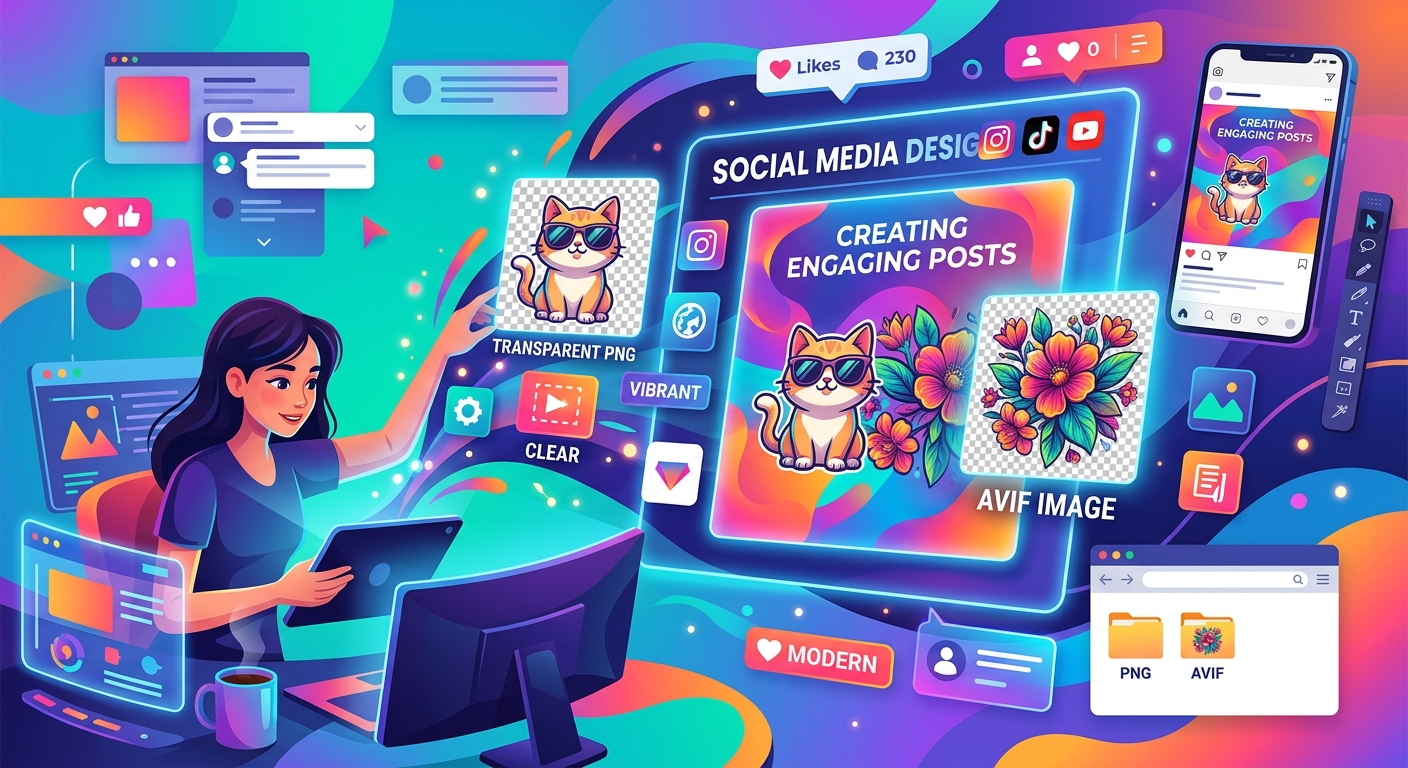
Your thumbnail has a great photo, a bold headline, and one annoying white rectangle around the main subject. That rectangle can make the whole design feel unfinished. A transparent PNG cutout fixes the problem. Place it over a photo, give the text room to breathe, and you have the foundation for a clear social post.
AVIF photos and PNG cutouts can work nicely in the same project. Use the photo to set the scene and the cutout to draw attention to a person, product, or graphic. Canva and GIMP let you build this kind of layered design, though importing an AVIF file may require an extra step. Here is how to get from downloaded assets to a finished image.
Keep your cutout transparent while you build the design, then export the completed composition.
Start with the message of your post. A cricket thumbnail might need a player cutout, a stadium photo, and a short match headline. A small business announcement might use a product cutout over a shop interior. A gaming post could place a character graphic over a screenshot you have permission to use.
The background provides context. The foreground tells viewers where to look. Text explains the point. When these three parts compete for attention, the design becomes harder to read.
PNG supports transparency, which lets the background show through around your cutout. Fine details, including hair and curved edges, can have partially transparent pixels. Those pixels help the subject blend into the scene without a hard rectangular border.
AVIF uses efficient compression for photos. A small file can still contain plenty of detail, although quality depends on how it was encoded. AVIF can also support transparency. For this workflow, its main job is to provide the photographic background.
Look for a background with some quiet space. A plain wall, soft sky, or blurred crowd gives your headline somewhere to sit. A busy photo may look appealing on its own but become distracting once you add a subject and text.
Check the PNG at a larger viewing size. Look closely around hair, fingers, clothing, and product edges. A cutout with missing details or a pale fringe will need cleanup. Using a cleaner asset saves time later.
A checkerboard usually represents transparency inside an editor. However, some downloaded images have the checkerboard baked into the picture. Test the file over a solid colored background. If the squares remain visible, the image is not a clean transparent cutout.
Choose enough resolution for the size you plan to use. A tiny character graphic will become soft if stretched across a large thumbnail. Downloading a larger file helps only when the file contains real detail. Enlarging a small image cannot restore detail that was never there.
Check usage rights before posting. A free download does not automatically grant permission for advertising or merchandise. Celebrity photos, team logos, and fictional characters can involve additional rights. Keep any license information with your assets, especially for client work.
Choose the shape before arranging the images. A square post needs a different layout from a wide thumbnail or a tall story. Cropping a finished wide design into a vertical frame often cuts off the subject or squeezes the headline.
For practice, a 1080 by 1080 pixel square gives you a useful starting canvas. A 1280 by 720 pixel canvas provides a familiar wide thumbnail shape. Check the destination platform’s requirements before your final export, since placement rules and accepted dimensions can change.
Keep faces, logos, and text away from the outer edges. Interface buttons, previews, and feed crops may cover parts of the image. Leave breathing room around the main message.
Sketch the arrangement mentally before opening every tool. Put the subject on one side and the headline on the other. Let the photo fill the canvas. This simple starting layout makes editing easier.
Create a design using your chosen dimensions or a suitable template. Upload the background photo and your transparent PNG. If the AVIF upload fails, prepare a compatible photo copy using the conversion step below.
Place the photo first. Make it cover the canvas, then adjust its crop so the useful part remains visible. Keep a stadium light, shop sign, or horizon from sitting directly behind your headline if it makes the text harder to read.
Add the PNG cutout and resize it using a corner handle. Preserve its proportions. Stretching only the width can make a face or product look distorted. Position the subject where it supports the message without covering the headline.
Use the position or layer controls to put the cutout above the background. Add your text after the main images are placed. This makes it easier to judge how much space the words actually need.
If the background is too busy, place a dark rectangle behind the headline and reduce its opacity. A restrained panel can improve readability without hiding the whole photo. Keep decorative shapes away from the subject’s face and other useful details.
AVIF support depends on the editor, its version, and the file itself. Try importing the original photo first. If the editor will not accept it, AVIF to JPG conversion gives you a compatible photo copy to use as the background.
Keep the original AVIF and convert a separate copy. Choose a quality setting that preserves the detail you need, then inspect the result before placing it in your design. Pay attention to faces, bright areas, and smooth gradients.
JPG cannot preserve transparency. Any transparent areas must become a solid background during conversion. This makes JPG suitable for an ordinary background photo, but unsuitable for keeping a transparent subject cutout.
Your PNG cutouts should remain PNG until the finished design is exported. Converting a cutout to JPG too early creates a rectangle around it. Changing that JPG back to PNG will not recover the lost transparency.
Renaming a file from .avif to .jpg does not convert it either. The image data must be decoded and saved in the new format. Once that conversion is complete, import the JPG background and continue arranging your PNG layers.
GIMP gives you direct control over individual layers and cutout edges. Create a new image at your chosen dimensions. Open the background through File > Open as Layers. Import the PNG through the same command so it appears as a separate layer.
If your installed build cannot open the AVIF photo, import the converted JPG copy. Keep the photo layer below the PNG layer in the Layers panel. Add text above both unless you intentionally want part of the subject to overlap it.
Use the Move tool’s active-layer option when selecting overlapping elements becomes frustrating. Select the intended layer in the Layers panel first. This helps prevent accidentally moving the background while trying to reposition the cutout.
Use a layer mask for edge cleanup. Painting black on the mask hides unwanted areas, while painting white restores them. A small, soft brush helps with delicate edges. Work close up, then check the result at the intended viewing size.
A clean edge is only part of a convincing composition. Light and color also affect how the layers fit. A warmly lit product may look awkward against a cool blue background. Small color adjustments can bring the images closer together.
Match the lighting direction where possible. If the background light comes from the left, choose a cutout with a similar bright side. You can flip some subjects, but check for reversed lettering, clothing details, and logos before using the result.
A subtle shadow can give a product a sense of placement. Keep it on a separate layer in GIMP, or use an available shadow effect in Canva. Judge the result against the scene. A floating character graphic may suit a thumbnail, while a product resting on a counter needs a more grounded shadow.
For bold thumbnails, a restrained outline can separate a subject from a busy photo. Avoid a thick border around every element. Too many outlines reduce the space available for the message and make small details harder to see.
Write the headline for the space you have. “Final Match Preview” is easier to fit than a long sentence covering every talking point. Put extra context in the caption when the image cannot carry it comfortably.
Use a readable font and clear contrast. Pale text over a bright sky often disappears. Darken the area behind it or add a simple solid panel. Check the whole word, since contrast may vary across the photo.
Reduce the preview until it resembles a small feed image. Can you read the headline without leaning closer? Can you recognize the subject? If either answer is uncertain, enlarge the useful elements and remove decoration.
A festival announcement may need a date as well as a headline. Give that date enough space to read. A gaming thumbnail may need only a character and a brief phrase. Let the purpose of the post decide how much text belongs in it.
Keep your Canva design editable. In GIMP, save the XCF project with its layers intact. These working versions let you replace a photo, change a date, or adapt the layout without rebuilding everything.
For a completed design with a full background, PNG or JPG may suit the final upload. PNG preserves sharp graphic edges without lossy compression. JPG can produce a smaller file for photo-heavy artwork, but compression may soften lettering and create marks around high-contrast edges.
A transparent final export is useful only if the finished asset needs to sit over another background. In Canva, transparent-background export may depend on your plan. In GIMP, export as PNG with an alpha channel and hide any solid background layers you do not want included.
Open the exported file before posting. Check dimensions, spelling, cutout edges, and cropping. Look for unexpected white areas. Preview the upload on your phone if possible, since the platform may resize or compress the image.
Once the layout works, save a reusable copy. Keep the headline area, subject position, and background treatment ready for the next announcement. Replace the assets and adjust the crop to suit each new image.
The useful habit is simple: preserve transparent PNG cutouts, keep original AVIF photos, and convert a photo copy only when import support requires it. Build with separate layers, check the design at a small size, and export after the composition is complete. Your next thumbnail starts with a usable structure instead of another blank canvas.
Build a room mood board in Canva with transparent PNG furniture, plants, and decor. Learn layering, realistic scale, and coordinating wall art.
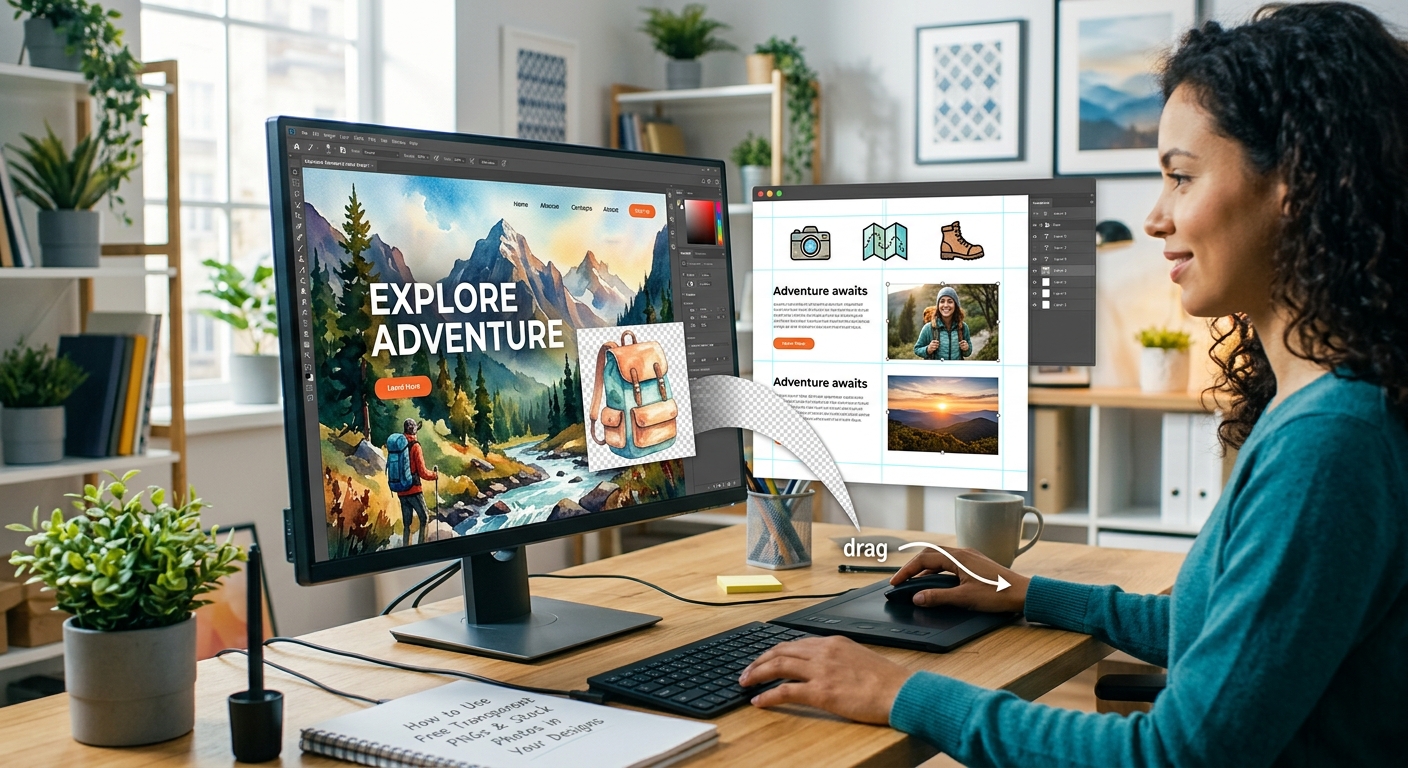
Layer free transparent PNGs over stock photos in Canva or GIMP to build polished thumbnails, social graphics, and blog headers step by step.
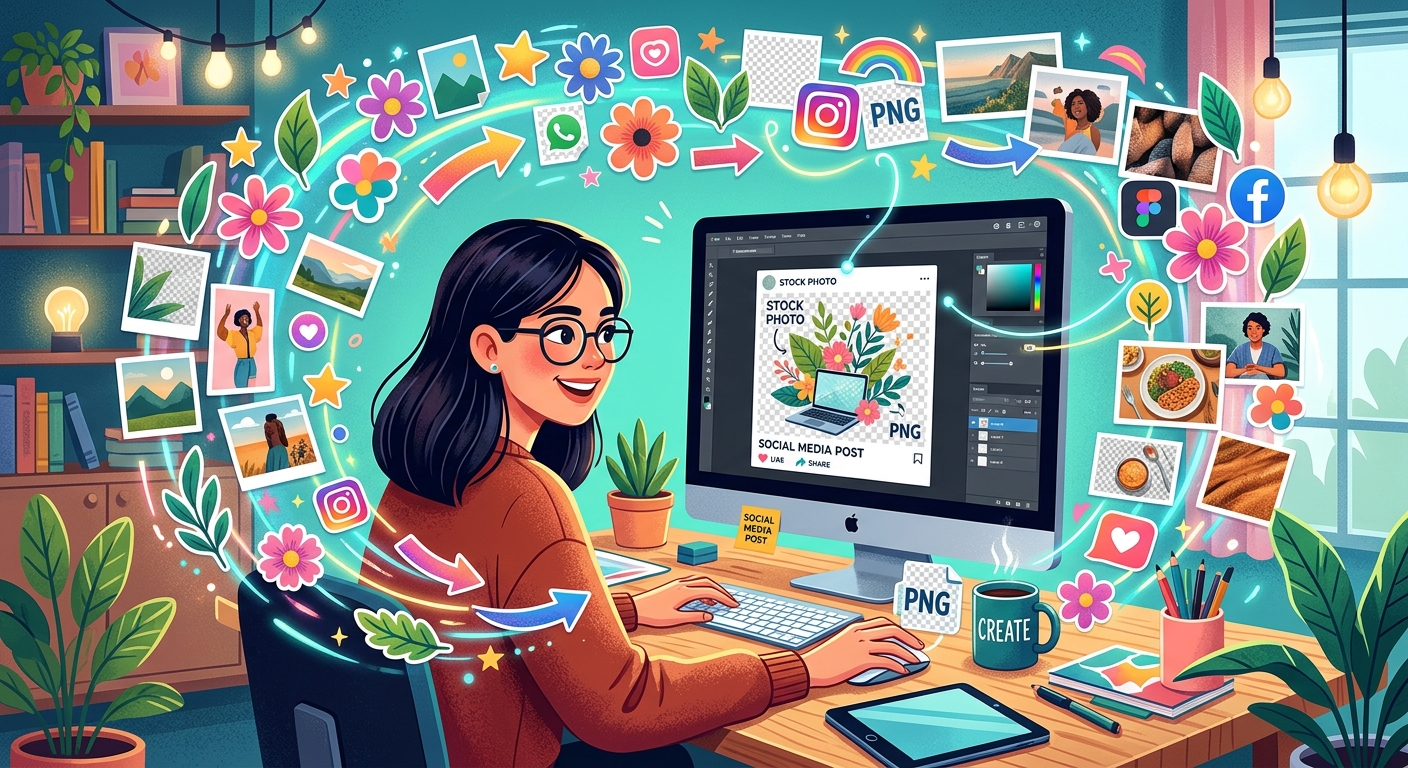
Step-by-step guide to layering free transparent PNGs over stock photos in Canva or GIMP to create polished social media graphics from scratch.