
How to Use Transparent PNGs and AVIF Images in Social Media Designs
Combine transparent PNG cutouts with AVIF photos in Canva or GIMP. Build clear thumbnails and social posts, handle import issues, and export clean designs.

Search

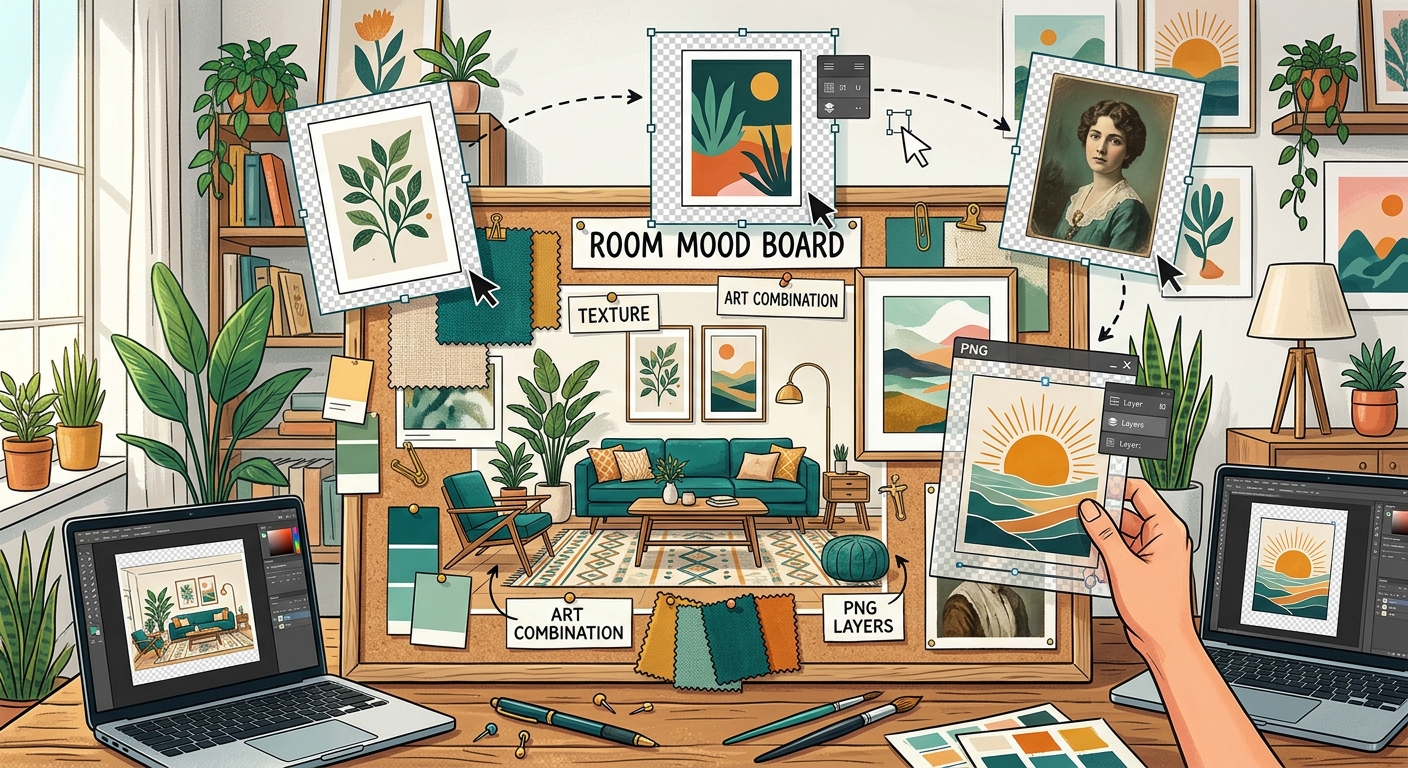
A chair looks perfect in your saved photos. Then you place it beside your chosen rug and realize the colors clash. A room mood board helps you catch those awkward pairings before you buy anything. With transparent PNG cutouts, you can arrange furniture, plants, and decorative objects on one canvas without white rectangles getting in the way. Add wall art, and the board starts to feel connected rather than a collection of separate shopping ideas.
You do not need a design background to make this useful. A simple Canva canvas, a few clear cutouts, and some attention to size will get you started. The aim is to see how your choices work as a group, then adjust them while changes are still easy.
Begin with one room, or even one corner. A reading nook is easier to plan than an entire apartment. You might need only an armchair, a lamp, a side table, a plant, and a framed print. Limiting the area keeps your board useful and stops unrelated ideas from crowding the canvas.
Write a short description of how you want the space to feel. “Calm reading corner with warm wood and green accents” gives you a direction. It also gives you a reason to reject an attractive object that does not fit.
Next, identify anything that must stay. Your existing sofa, flooring, curtains, or wall color should appear early. A board built around imaginary finishes may look lovely but tell you little about your actual room. A clear photo of an existing item can help, even if its cutout is less polished than the other assets.
Transparent PNGs let the canvas show through around an object. This makes a chair or vase easier to place beside other items. However, a PNG filename does not guarantee transparency. Some files contain a solid background, and others have a checkerboard pattern baked into the image.
Test each download against a colored background in Canva. If a rectangle or checkerboard remains visible, the file needs cleanup or replacement. Check the edges too. Pale outlines around dark furniture can become distracting once you place the cutout against a deeper wall color.
Choose assets with compatible viewpoints. A straight-on sofa usually pairs better with a straight-on cabinet than with a cabinet photographed from above. You can mix angles on a loose inspiration board, but a room-style arrangement needs more consistency.
Start with fewer assets than you think you need. One main seat, one supporting furniture piece, one plant, and two decorative objects can establish a clear direction. You can add alternatives later without turning the board into a crowded catalog.
A landscape canvas works nicely for a room mood board. Try custom dimensions of 1600 by 1000 pixels as a starting point. That gives you space for a furniture arrangement and a small strip of color swatches. The canvas dimensions describe your image, not the physical dimensions of the room.
Choose a background close to your intended wall color. Warm cream, pale gray, or muted green can make furniture relationships easier to judge than a stark white canvas. If your room already has a strong wall color, use that shade first.
You can build either a loose collection of objects or a simplified room view. Pick the format that answers your current question. A collection helps you compare finishes. A room view helps you judge placement and overlap.
| Format | Best Use | Main Limitation |
|---|---|---|
| Loose object collection | Comparing colors, materials, and shopping options | Does not show furniture placement clearly |
| Simplified room view | Testing wall art, furniture relationships, and layering | Needs compatible image angles and careful sizing |
| Room view with a swatch strip | Reviewing the arrangement and its color palette on one page | Needs extra space to keep the layout readable |
Upload your PNGs through Canva’s upload area, then place your largest furniture piece first. For a living room, that will often be the sofa. For a bedroom, it may be the bed. Its visible size becomes your reference for everything else.
Use Canva’s position or layer controls to move objects forward and backward. If a rug covers the sofa legs, send the rug behind the sofa. If a plant belongs beside a cabinet, let its leaves overlap the cabinet slightly while keeping the pot visibly grounded.
Once the background and large pieces are placed, lock them if that option is available in your editor. This reduces accidental movement while you adjust smaller objects. Keep related items grouped when you need to move them as a unit.
At this stage, the board has enough structure to make artwork choices meaningful. Browse print art for artwork inspiration, paying attention to colors and compositions that suit the furniture already on your canvas. A landscape with dusty green and warm beige might connect a leafy plant with an oatmeal sofa. A graphic print with rust accents could support a terracotta pot and a patterned cushion.
Select one artwork direction before adding several competing prints. Identify its dominant color, a supporting color, and one smaller accent. Carry those colors into a few objects around the board. The match does not need to be exact. Related shades often feel more natural than repeating one identical color everywhere.
Give the artwork a frame if that helps you judge the wall arrangement. A simple rectangle behind the image can suggest a frame or mount. Keep its thickness modest at the board’s scale. A heavy border can make a small print appear more visually dominant than intended.
Check the relationship between the artwork and the furniture beneath it. Try one version with a single larger piece and another with two smaller pieces. Duplicate the Canva page before changing the arrangement. Comparing complete versions is easier than trying to recall how the previous layout looked.
Downloaded images arrive with different dimensions and different amounts of transparent padding. A plant file may be much larger than a sofa file, even though the real plant is smaller. Size objects by their visible shapes, not by the dimensions of the uploaded files.
Use known furniture measurements when you have them. If a sofa is 200 centimeters wide and a cabinet is 100 centimeters wide, the cabinet should appear about half as wide in a straight-on arrangement. This is a rough visual check. It works best when the cutouts share a similar viewpoint.
Watch smaller objects closely. A vase should sit comfortably on its table. A floor lamp should have a believable height beside a chair. A framed print should relate to the wall space around it. These relationships matter more than making every item large enough to show all its details.
A mood board cannot confirm walking clearance, furniture depth, or installation measurements. Keep actual room measurements separately. Use the board to judge appearance, then use those measurements to check fit before buying.
Layering gives the board a sense of depth, but each overlap should suggest a clear position. A cushion belongs in front of the sofa back. A vase belongs above the tabletop. A rug belongs beneath the furniture. If an object covers the wrong edge, the arrangement can look physically confusing.
Add plants where the board needs height or a softer outline. A tall plant can balance a low cabinet. A smaller plant can break up a long shelf. Avoid filling every empty area with greenery. Space between objects helps you see their shapes and compare their colors.
Shadows are optional. If your cutouts already include shadows, inspect whether they point in compatible directions. If you add shadow effects, keep them subtle and consistent. Heavy shadows around every item can make the board resemble a collection of stickers.
Zoom out until you can see the whole canvas comfortably. This reveals whether one object overwhelms the arrangement or whether the wall art feels disconnected. Then zoom in to inspect cutout edges, awkward overlaps, and blurry assets.
When two options seem close, duplicate the page and change just one choice. Compare a dark frame with a wood frame, or a cream chair with a green chair. Keeping the other elements fixed makes the effect easier to judge.
Export a PNG copy for sharing and retain the editable Canva design. If someone will review the board on a phone, check that the furniture and artwork remain readable at that size. Put detailed product notes on a separate page if they crowd the visual.
Your finished board should help you make a few clear decisions. You might settle on warm wood, choose a smaller wall print, or realize that the room needs fewer decorative objects. That is useful progress, even if the arrangement is still changing.
Keep the strongest version as your reference. Add actual measurements and product details as your plans become firmer. With clean PNG cutouts, believable scale, and artwork that connects the colors, you have a practical way to test room ideas before committing to them.
Combine transparent PNG cutouts with AVIF photos in Canva or GIMP. Build clear thumbnails and social posts, handle import issues, and export clean designs.
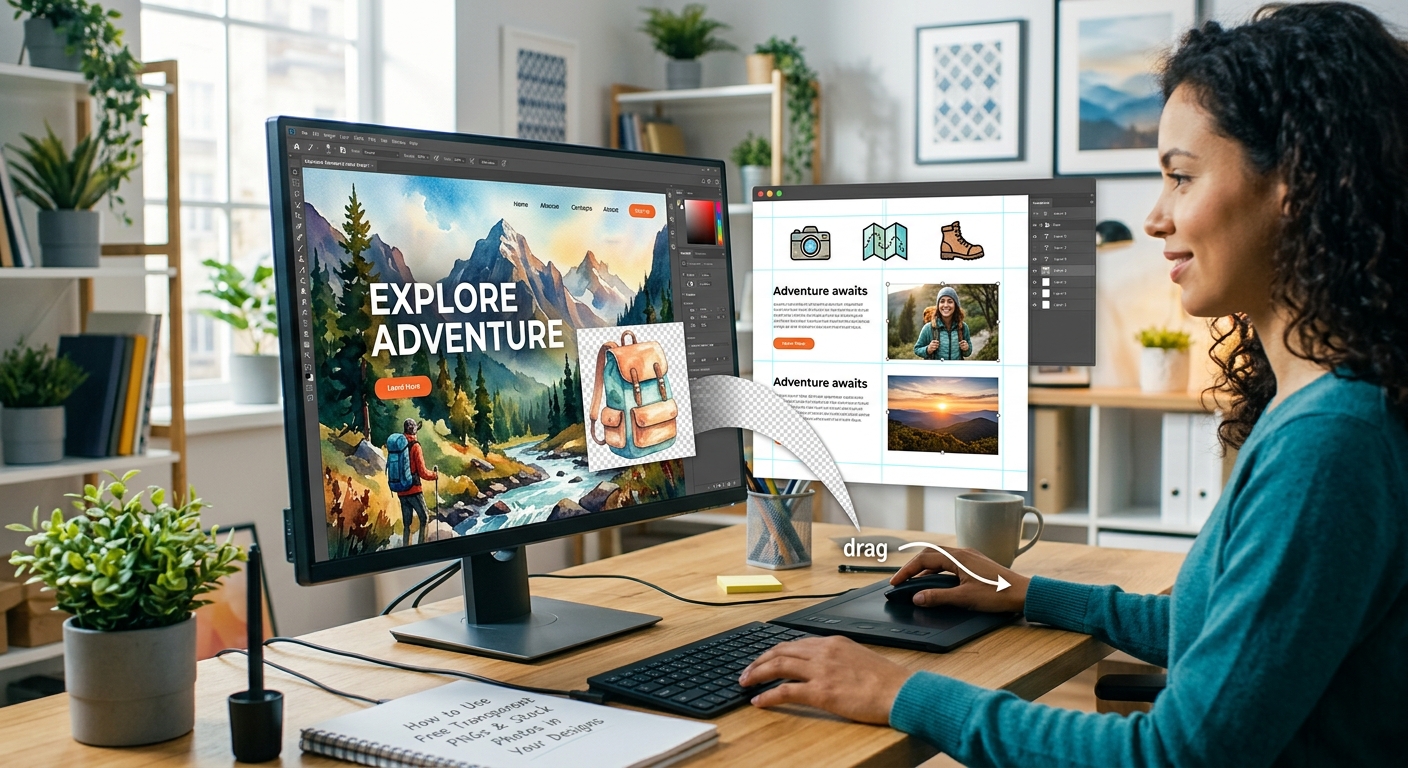
Layer free transparent PNGs over stock photos in Canva or GIMP to build polished thumbnails, social graphics, and blog headers step by step.

Step-by-step guide to layering free transparent PNGs over stock photos in Canva or GIMP to create polished social media graphics from scratch.