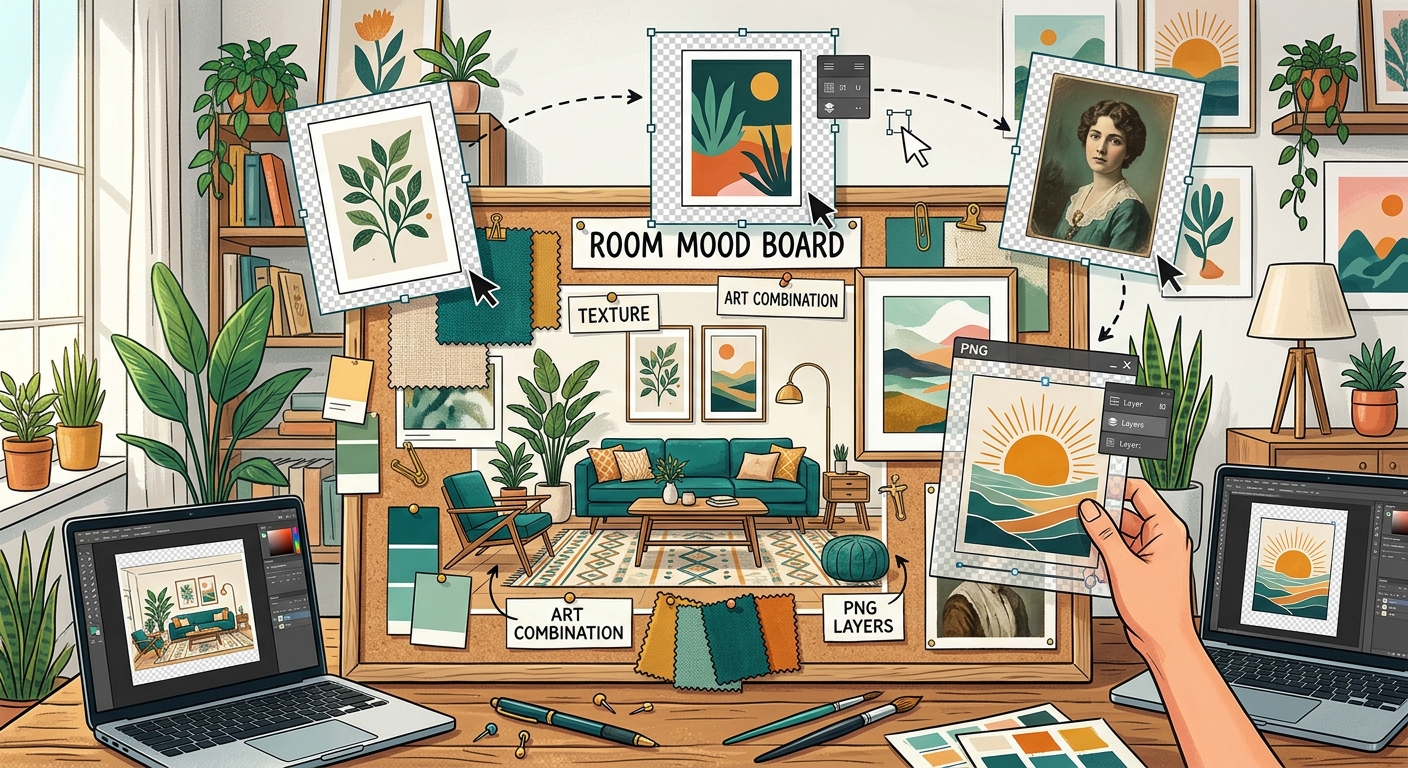
How to Combine Transparent PNGs and Wall Art in Room Mood Boards
Build a room mood board in Canva with transparent PNG furniture, plants, and decor. Learn layering, realistic scale, and coordinating wall art.

Search

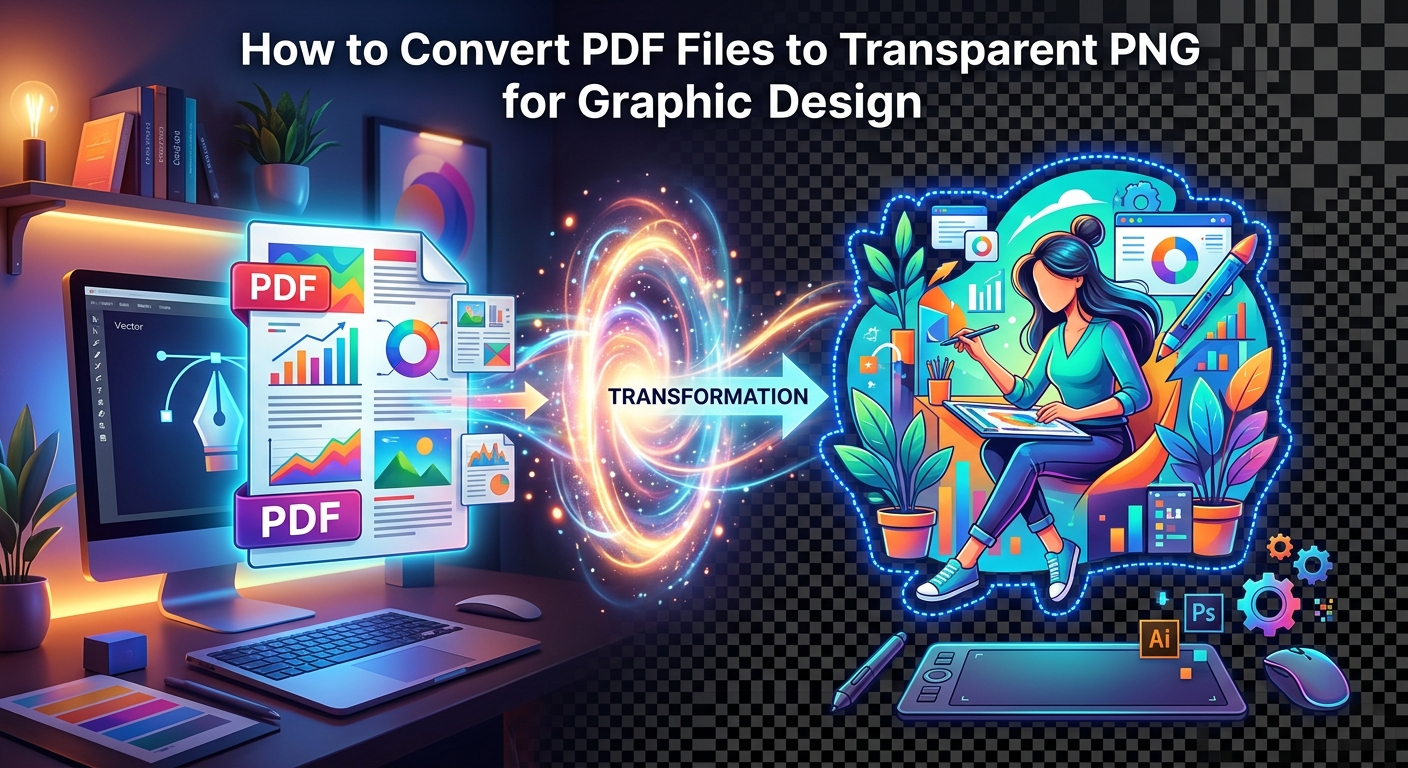
You receive a logo file from a client. The format is PDF. You need a clean PNG with a transparent background ready for a social media post, a YouTube thumbnail, or a print-on-demand mockup. But every time you try to use that PDF, your design tool either rejects it outright or drops it in with an ugly white box behind it. This is one of the most common bottlenecks that catches new designers off guard, and it has a straightforward fix once you understand what is actually happening with these file types.
PDF stands for Portable Document Format. It was created to preserve the exact appearance of a document across every device and printer. That makes it perfect for archiving finished files. Print shops request PDFs. Agencies store brand assets as PDFs. Corporate brand kits ship as multi-page PDF packages with every logo variation on its own page.
The problem is that a PDF is not a layered image file. It bundles text, vector shapes, and raster images into a single container that renders consistently everywhere. When you drag it into Canva, GIMP, or a print-on-demand upload field, the software either refuses it entirely or flattens everything onto a white background. Neither outcome gives you the transparent PNG you need for design work.
This format mismatch catches beginners every single time. The client sends what they have. The designer needs something else. Knowing how to bridge that gap is a core skill worth building early.
Not every PNG is transparent. A PNG file supports an alpha channel, which is an extra data layer that controls how visible each pixel is. A pixel with full alpha is completely invisible. A pixel with zero alpha is fully opaque. Every value in between creates partial transparency, which is how you get smooth feathered edges around curved logos or text with soft drop shadows.
PNG was designed with this capability built in from the start. Its alpha channel standard, maintained by the W3C, defines transparency as a core feature of the format, making it the most reliable choice for transparent graphics across browsers, design tools, and print workflows alike.
A JPEG file, by contrast, has no alpha channel at all. Every JPEG pixel is fully opaque. That is why any logo saved as a JPEG always carries a baked-in background. PNG is the format that solves this problem, which is exactly why converting your PDF to PNG is the right first move.
If you regularly receive brand assets in different formats, knowing how each one behaves before you start converting anything will save you a lot of time. Designers encounter these three formats constantly, and each has a specific job it does well.
| Format | Transparency Support | Scalable | Best Used For |
|---|---|---|---|
| Sometimes (depends on file content) | Yes | Document sharing, print-ready files, brand kit archives | |
| PNG | Yes (full alpha channel) | No (raster only) | Transparent logos, social graphics, thumbnails, overlays |
| SVG | Yes | Yes (vector) | Web design, icon sets, logos that need to scale infinitely |
PNG wins for most graphic design tasks because every major design platform accepts it. SVG is better suited for web development contexts but many upload fields still reject it. PDF is the format you receive, not the format you work with. Once you internalize that distinction, your whole workflow becomes cleaner.
The conversion process has two distinct stages. The first stage turns the PDF into a PNG image file. The second stage strips the background to expose transparency. Work through these in order and the result will be a clean, usable asset.
You do not need to install anything to convert a PDF. Browser-based converters handle the job entirely online. Running a PDF to PNG conversion through a tool like PDFBear is an upload-and-download workflow with no account required. You open it in a browser tab, upload the file, pick your settings, and download the result. That is the complete process for step one.
After the initial PNG lands on your desktop, open it in whichever editing tool you prefer for the background removal step. Canva's background remover is fast for clean, flat logos. Photoshop's Select Subject command works well for more complex graphics. GIMP is free and handles most common cases with the Fuzzy Select and Erase tools.
One habit worth building immediately: always keep the original PDF after you finish the conversion. Once you rasterize the file and save the PNG at a specific pixel size, that resolution is locked in. If you need a larger version later, you want to start again from the PDF rather than scaling up a rasterized image and introducing blur.
Sometimes there is no PDF to work from. The client sends a blurry JPEG screenshot of their logo. The original file was lost years ago. A piece of clipart you found online has a white background baked directly into the pixels. In these situations, PDF conversion is not an option because there is nothing to convert.
Here are the most practical ways forward when the source file is gone:
For clipart, characters, decorative borders, and general graphic elements, free transparent PNG repositories are genuinely useful tools to keep bookmarked. The background removal has already been handled. You download the file and drop it straight into your layout without any conversion work on your end.
Receiving a PDF and needing a transparent PNG is a format mismatch, not a design skill gap. PDF files look finished and professional, but they are packaged for document delivery. They were never meant to be dropped into layered design projects as raw assets. The two-step process of PDF-to-PNG-to-transparent-PNG is the standard bridge between those two worlds.
The habits that matter most: export at high resolution so you have room to crop and resize later, check the edges after every background removal to catch fringing before it shows up in the final design, and always archive the original PDF. These three practices keep your asset library in good shape and prevent you from repeating the same work months down the line.
For those moments when no source file exists at all, ready-made transparent PNG libraries cut the effort to almost nothing. Grab a pre-cut graphic, place it in your project, and stay focused on the design itself rather than the format problem sitting in front of it.
Build a room mood board in Canva with transparent PNG furniture, plants, and decor. Learn layering, realistic scale, and coordinating wall art.
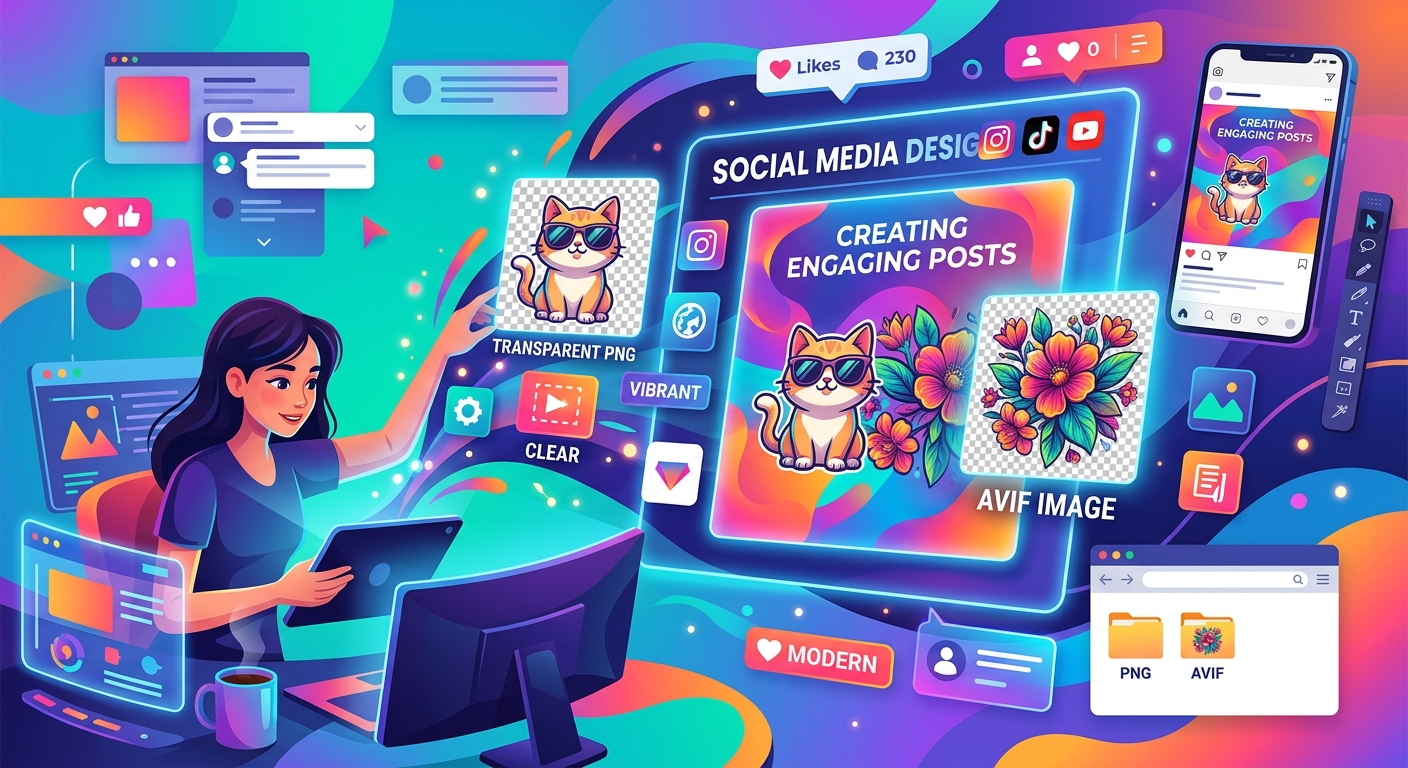
Combine transparent PNG cutouts with AVIF photos in Canva or GIMP. Build clear thumbnails and social posts, handle import issues, and export clean designs.
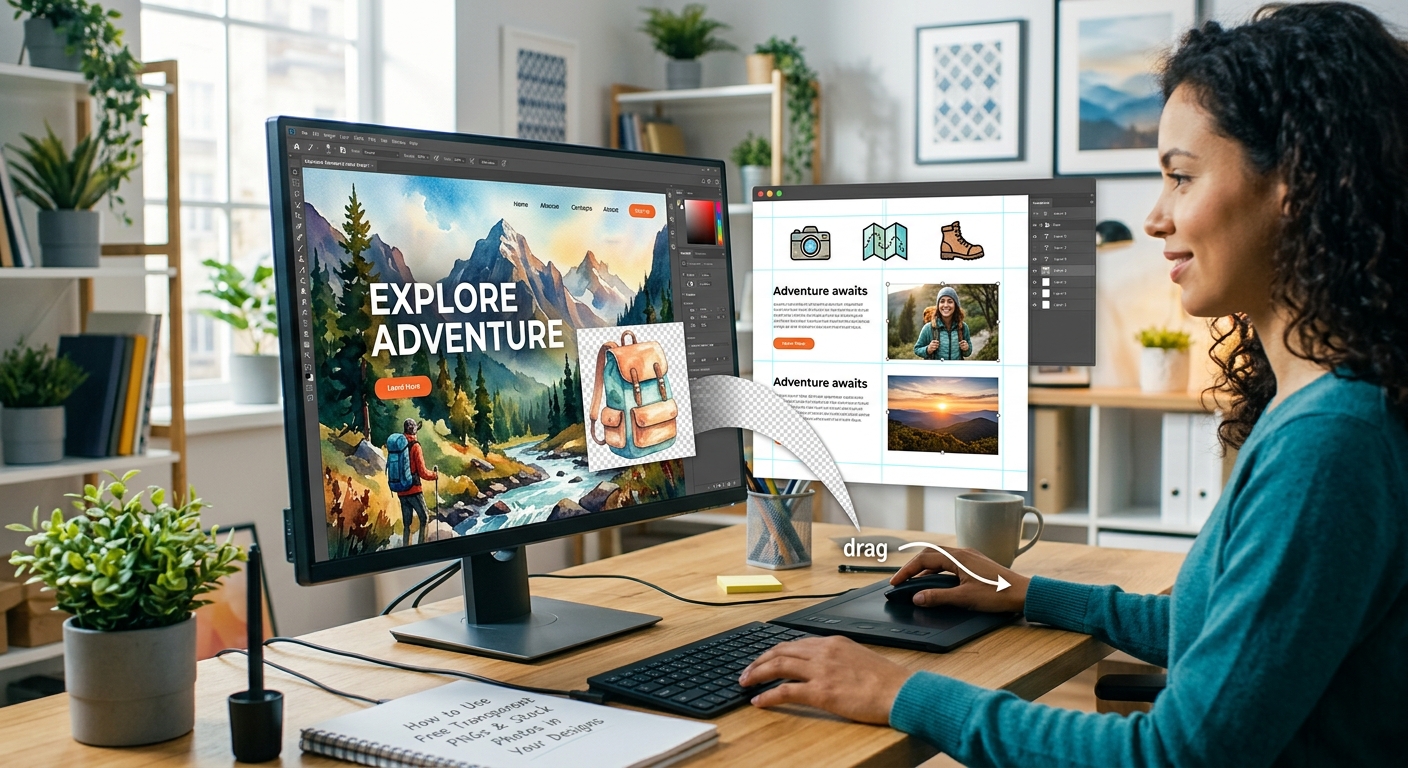
Layer free transparent PNGs over stock photos in Canva or GIMP to build polished thumbnails, social graphics, and blog headers step by step.